
Assign/UnAssign a Driver Feature
Each customer has the choice to assign/unassign a driver of their choice, aside from the platform assisting you in matching/unmatching a driver for your route.
Assigning a Driver
- Navigate to Track Route
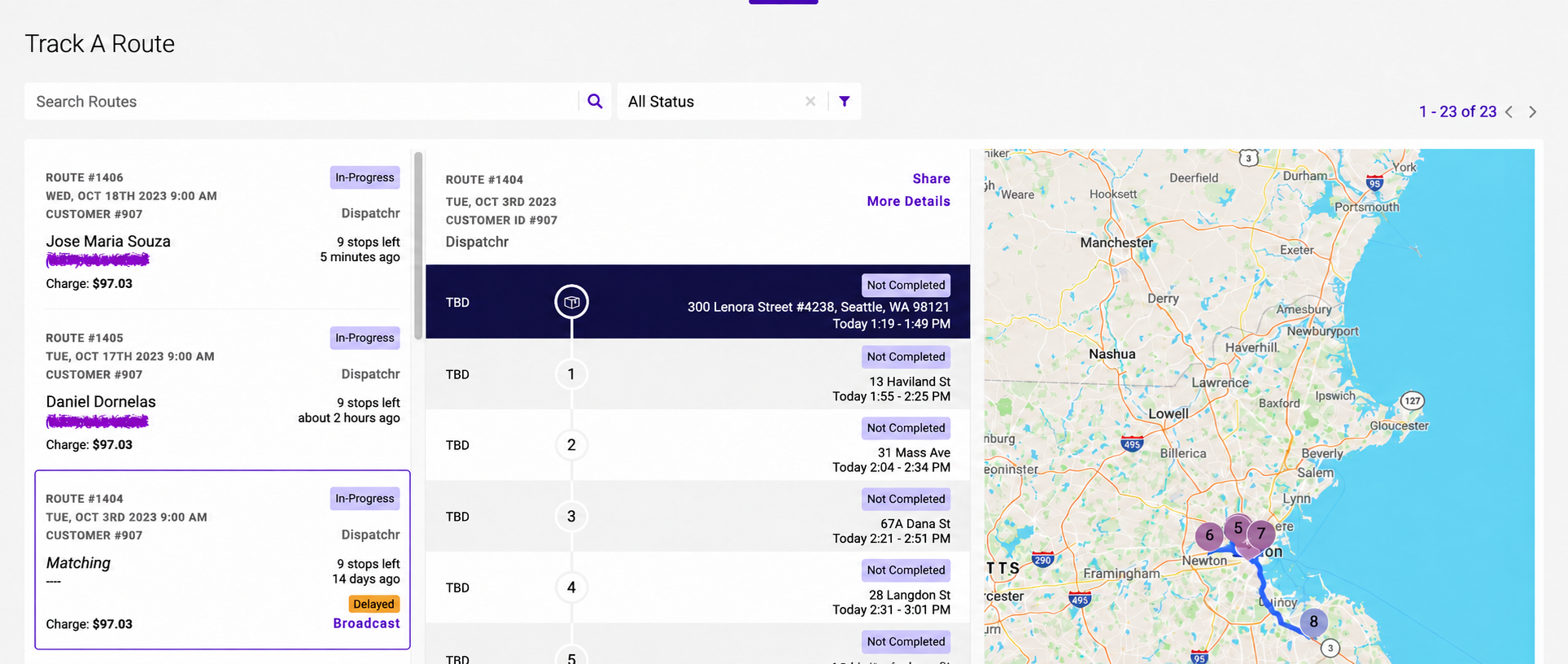
2. Mouse Over Matching
3. Click Matching
4. Search the Driver Name
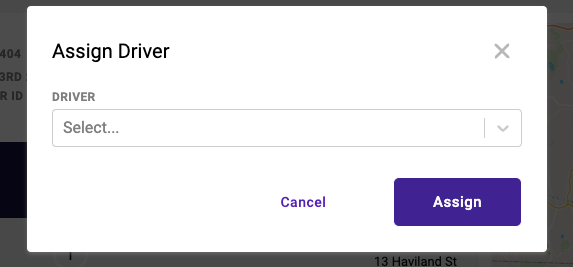
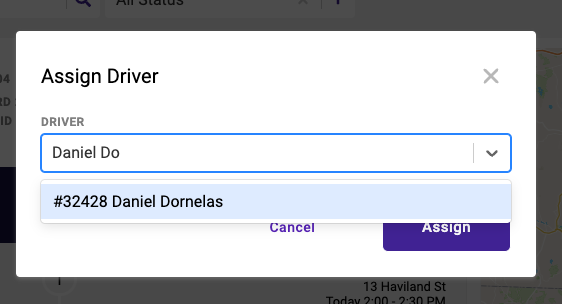
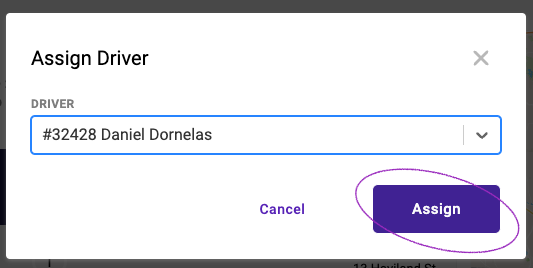
6. Click Assign
Unassign a Driver
- Mouse over the Driver's Name
2. Click the "X"
3. Click "Un-assign"
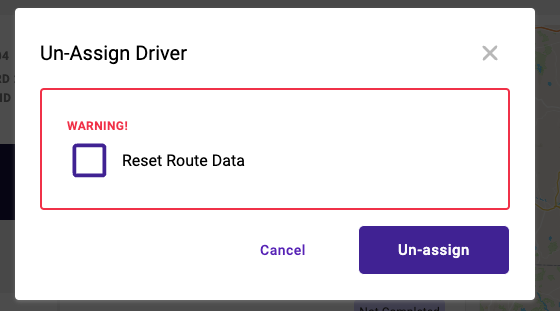
A note on "Reset Route Data". This option will clear captured data on the route and reset it to its original state.
Have a question about this article?Contact support